Key takeaways
- Yes. Browser-based 2D editors, coding workspaces, and restrained 3D editors can work on a basic laptop when the project stays small. Test the real edit-preview-share loop on your machine before committing.
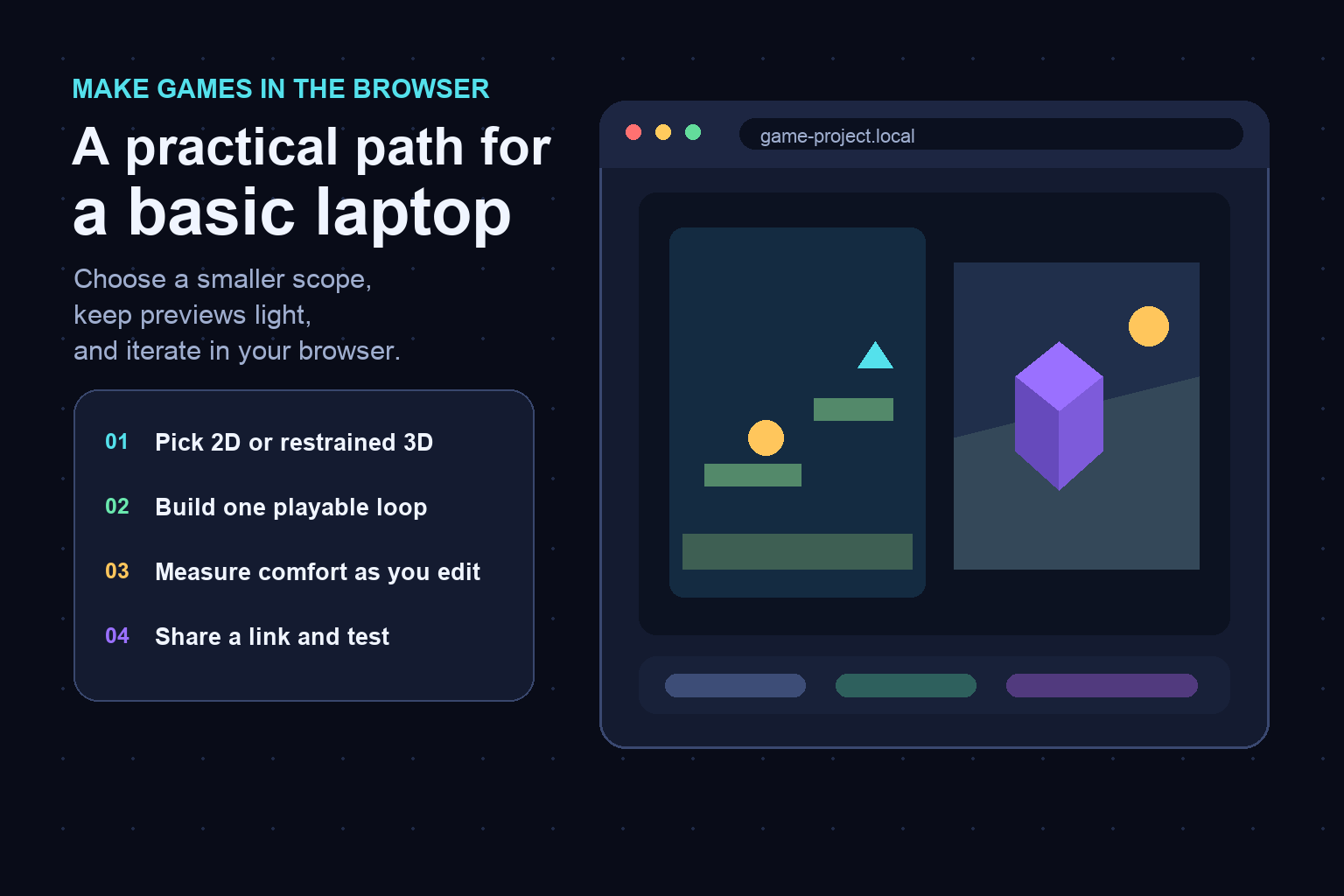
Yes. A basic laptop can be enough to make a small 2D game—or a carefully scoped 3D game—when the editor, preview, and sharing flow run in the browser. The useful question is not “Can this laptop run game development?” in the abstract. It is “Can this particular project stay comfortable while I edit, preview, and test it?” Start with one scene, one core mechanic, lightweight art, and a short play session. Then expand only after the browser remains responsive during real work.
Browser-based options fall into three broad groups: visual 2D editors, code-focused game workspaces, and browser-native 3D editors. Examples worth evaluating on their official sites include GDevelop, Construct 3, microStudio, and PlayCanvas. Their current browser support, account requirements, storage, collaboration, and export options can change, so confirm the details that matter to your class or game jam before committing.
What “works on a basic laptop” should mean
A tool is a practical fit if you can complete the whole loop: open the project, make a change, preview it, recover from mistakes, and share a build. A landing page that loads is not enough. Test the heaviest routine action you expect to repeat, such as opening a scene, switching tabs, importing an asset, or restarting a preview.
Hardware labels are imprecise, so use observed comfort rather than a universal specification. Keep the browser’s task manager or operating-system monitor available if you know how to read it, but do not chase a single number. Fan noise, input delay, tab reloads, and long pauses are useful practical signals. School device policies, extensions, network filtering, and available storage can also affect the experience independently of the processor or graphics hardware.
The main browser-based tool categories
Visual 2D editors are usually the lowest-risk starting point for a short jam. They let you arrange scenes, define events or behaviors, and preview a game without building every system from raw code. They are a strong fit for platformers, top-down games, puzzle rooms, clickers, and single-screen arcade loops.
Code-focused browser workspaces suit students who want to learn programming while making a game. They can keep source files, art, and preview in one web project. The tradeoff is that debugging and architecture become part of the task, so the first game should use very few systems.
Browser-native 3D editors can support real 3D scenes, but “browser-based” does not remove the cost of geometry, textures, lighting, physics, and effects. A compact low-poly scene with one camera path is a more realistic first test than an open world. Treat 3D as a scope decision, not as proof that one tool is inherently heavy or light.
A low-overhead game jam workflow
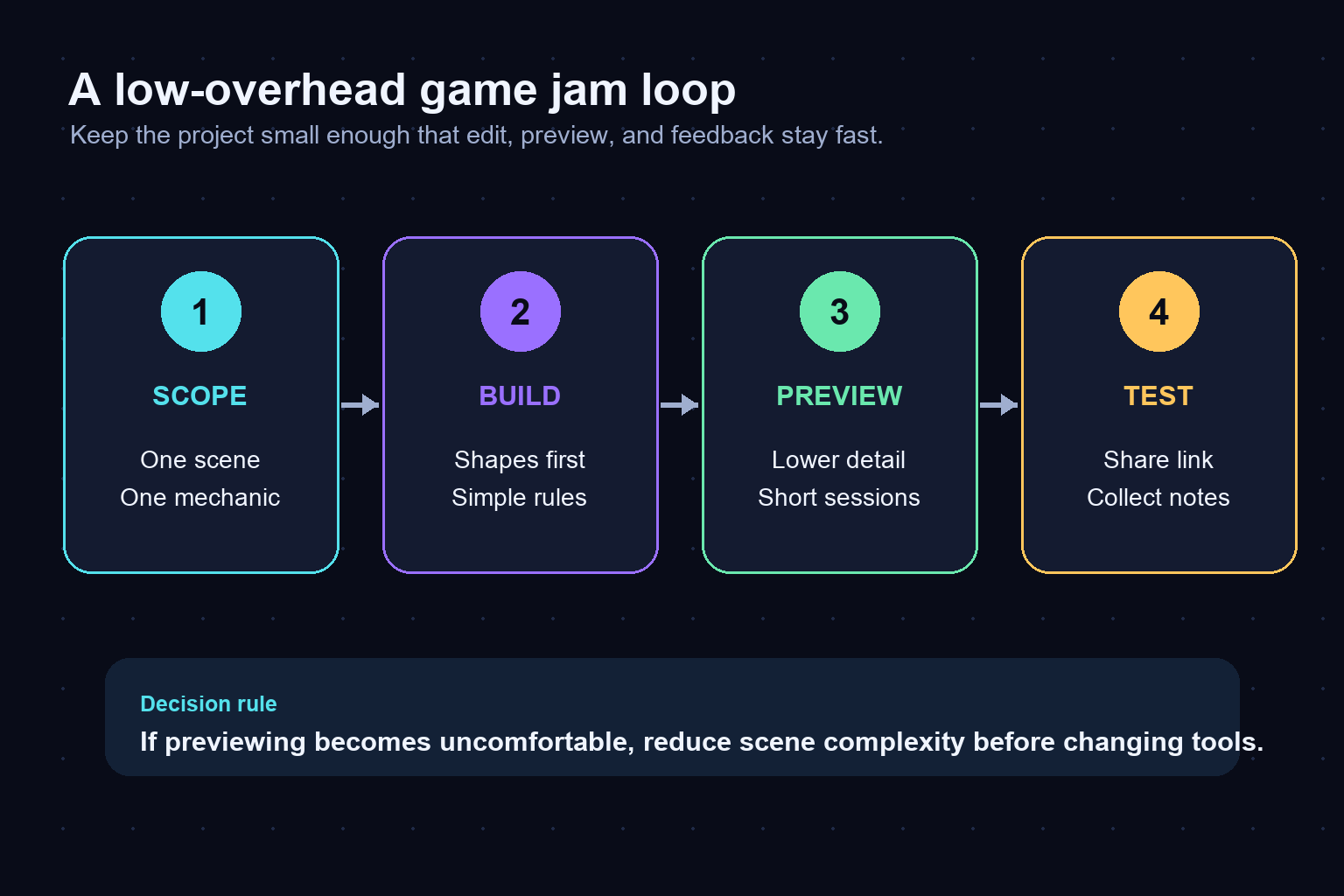
Begin with a sentence that defines the loop: “Move, collect three objects, reach the exit.” Create one scene and use colored shapes or simple primitives until movement, collision, success, failure, and restart work. This separates game-design risk from asset-production risk.
Next, preview in short sessions. Close unrelated tabs, keep only the references you need, and avoid importing large asset packs before the loop is stable. If editing is comfortable but previewing is not, simplify the scene first: reduce active objects, effects, texture sizes, or simultaneous systems. If the editor itself is uncomfortable in an empty test project, compare another category of tool.
Before the jam deadline, test sharing from a second browser or device when possible. Confirm that the game starts, accepts input, reaches an end state, and can restart. Keep a small backup outside the live project if the tool offers an export or source download that fits your workflow.
A 2D-versus-3D decision checklist
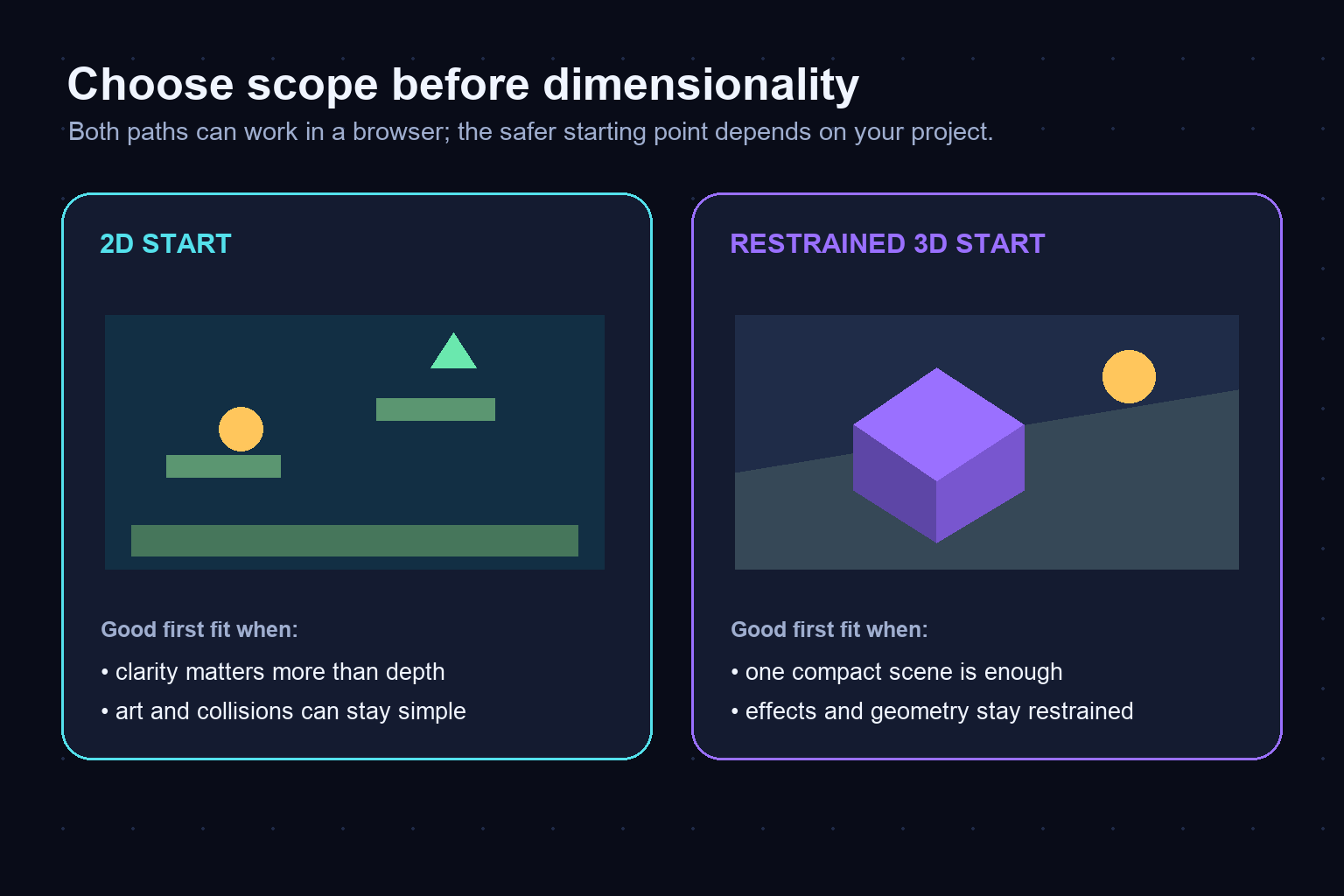
Choose 2D first when the game’s fun depends on timing, rules, dialogue, puzzles, or level layout more than spatial depth. A one-screen dodge game, short platform challenge, visual novel scene, or grid puzzle gives you room to finish a full loop without spending the event on cameras and lighting.
Choose restrained 3D when depth is central to the idea and the prototype can stay compact. Good boundaries include one room, a small number of reusable objects, simple materials, limited dynamic lighting, and one main interaction. Use primitives before custom models. Add visual effects only after the core interaction remains comfortable.
If you are undecided, build the same 30-second interaction in both forms. The better option is the one your team can edit, explain, and debug within the available time—not necessarily the one that looks more ambitious in a screenshot.
How to evaluate a browser tool in 20 minutes
Create a disposable test project rather than judging a polished demo. In the first five minutes, make one object respond to input. In the next five, add a goal or collision. Then duplicate several objects, restart the preview repeatedly, and make one deliberate mistake so you can inspect undo, version history, or recovery behavior.
Ask four questions. Does the editor remain readable on your screen? Can you move between edit and preview without losing context? Can your teammate or instructor open the shared result? Can you retrieve a usable copy of the project in the format you need? A “no” is not automatically disqualifying, but it reveals the tradeoff before the real project depends on it.
Run this test on the actual laptop, browser profile, and network you expect to use. A tool that works well on someone else’s machine is evidence about the tool, not a guarantee about your setup.
Common ways small projects become heavy
The browser is rarely the only cause of slowdown. Large images, many animated objects, high-detail models, dynamic lights, particle effects, physics bodies, audio files, and background tabs all compete for resources. Adding several features at once also makes it harder to identify the cause of a problem.
Use a “one change, one test” habit. Add a feature, preview it, and keep or revert it. Resize source assets before importing when practical. Reuse a small set of materials and objects. Prefer a short level with a clear ending over a large map that is mostly empty. These choices improve iteration discipline even on stronger computers.
Picking a sensible first project
For a solo student, a one-screen 2D game is the safest default because it exposes the full development loop without requiring much content. For a small jam team, assign one person to the playable loop, one to visual assets, and one to testing or presentation; combine roles when the team is smaller.
If 3D is essential, prototype one interaction in one room and set a feature freeze early. Do not assume a browser editor will make an oversized design inexpensive. The browser reduces setup friction, but project complexity still has to be managed.
The best tool is the one that lets your actual team finish, recover, and share on the hardware you have. Start with a tiny proof, record what felt slow or confusing, and choose based on that test rather than on a feature list alone.
Next step
Open two candidates from different categories and run the 20-minute test on each. Keep the same tiny game idea, assets, and acceptance criteria. At the end, choose the tool with the clearer edit-preview-share loop, then lock the scope for your first playable build. For a broader introduction to no-install creation, see our browser-based game maker guide, or use the no-download browser game checklist when sharing is the main goal.
Frequently Asked Questions
Can I make a 2D game entirely in a browser?
Yes. Browser-based visual editors and coding workspaces can support a complete small 2D workflow, including editing, previewing, and link-based sharing. Check the specific tool’s current save, export, and account options before relying on it for a class or game jam.
Can a basic laptop make a 3D browser game?
It can, if the project is deliberately restrained. Start with one compact scene, simple geometry and materials, limited effects, and one main interaction. Test the empty editor and a small playable scene on the actual laptop before expanding.
Should a beginner choose 2D or 3D on low-end hardware?
2D is the safer default when the idea does not require depth because it usually gives a beginner fewer systems to manage. Choose restrained 3D when spatial movement is central and the scene can remain small.
What should I test before choosing a browser game maker?
Test input, collision or a goal, repeated preview restarts, undo or recovery, sharing, and project retrieval. Run the test on the browser profile and network you will actually use.
Do browser-based game tools require installation?
The main editor may run in a browser, but optional helpers, local exporters, or platform-specific packaging steps may still require downloads. Confirm the current workflow for your intended output on the tool’s official documentation.
How can I keep a browser game project lightweight?
Use one scene, a small number of active objects, simple art or primitives, restrained effects, short audio, and a one-change-one-test workflow. Reduce scene complexity before assuming you need different hardware.