
Prompt
Generate a 3D Isometric Icons image with a clear hero subject, refined composition, layered foreground and background, expressive lighting, premium gallery-ready detail, no text, no watermark.
Create this look Start Free
A 3D style image generator creates flat visual assets that look dimensional through isometric perspective, lighting, materials, and shadows. Use this page to make icon images for presentations, product concepts, thumbnails, and moodboards; it does not create editable geometry, meshes, rigs, or 3D scene files.
Generate a 3D Isometric Icons image with a clear hero subject, refined composition, layered foreground and background, expressive lighting, premium gallery-ready detail, no text, no watermark.
Create this lookGenerate a close-up 3D Isometric Icons visual with tactile material detail, controlled color palette, shallow depth cues, dramatic side lighting, editorial art direction, no text, no logo.
Create this look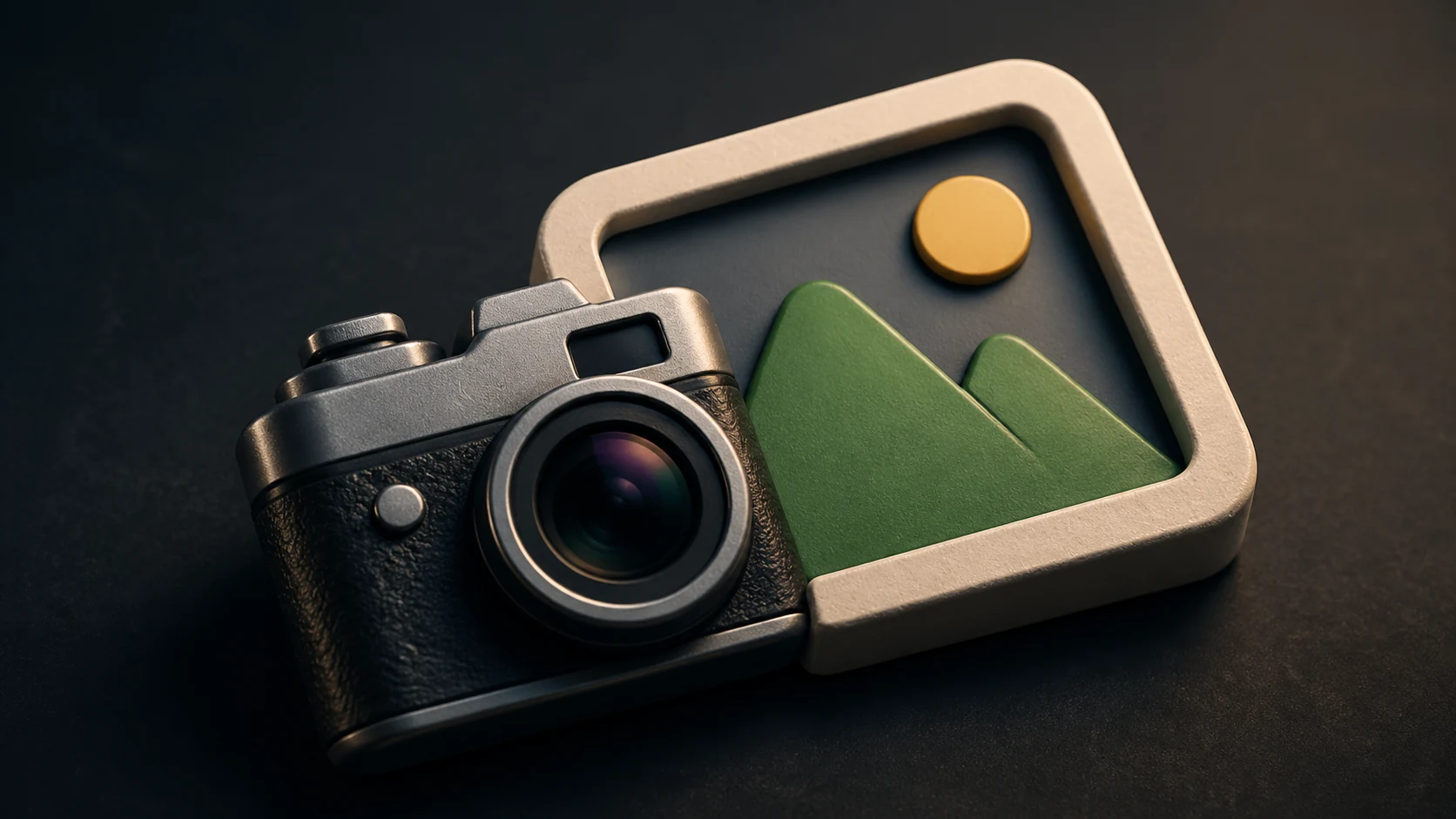
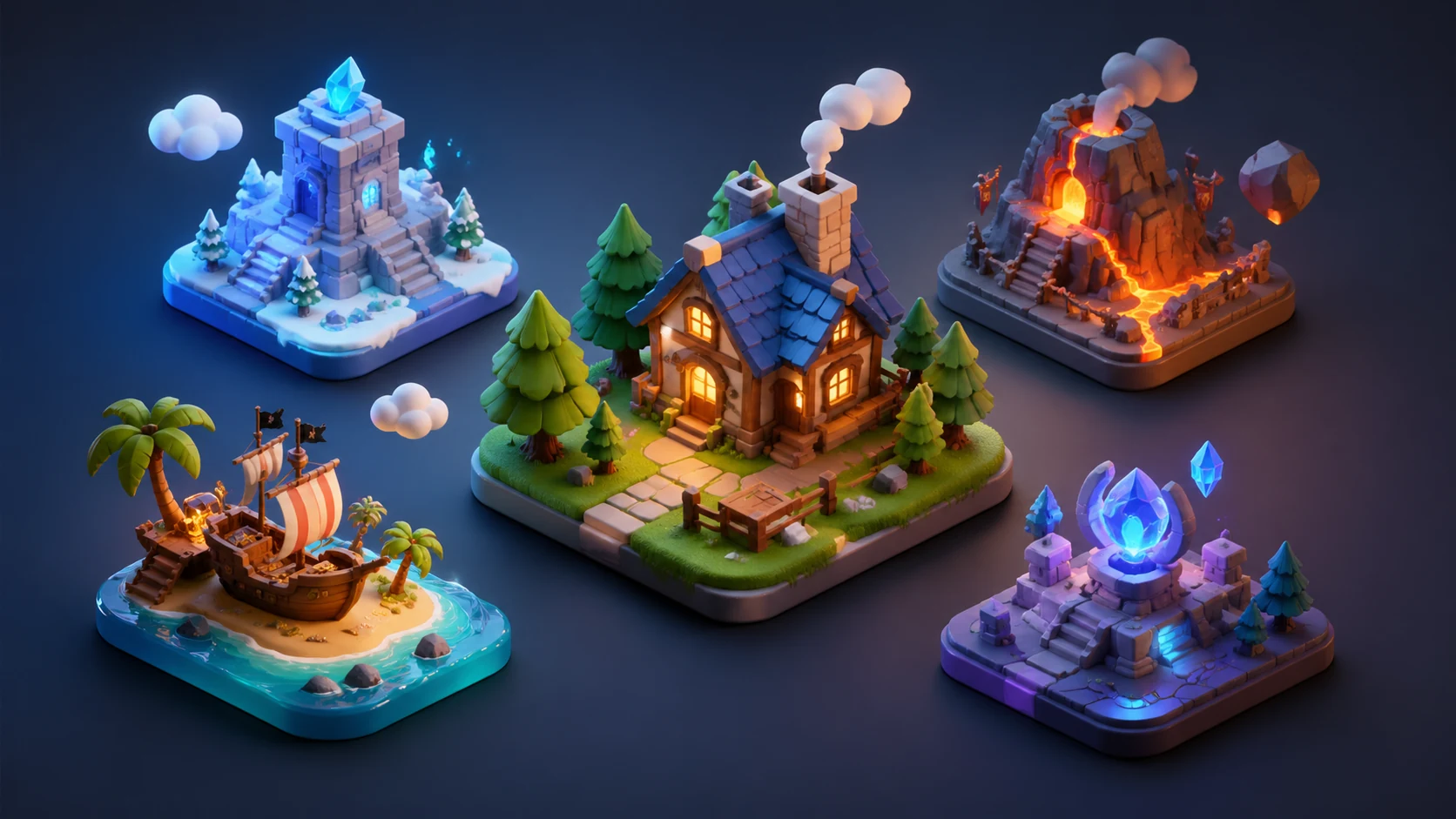
Generate a wide-scene 3D Isometric Icons concept with immersive atmosphere, balanced negative space, cinematic perspective, crisp focal point, high-end creative portfolio finish, no text, no watermark.
Create this lookPrompt workflow
Use this page as a starting point for a focused 3d style visual. A strong prompt names the subject first, then gives the image model enough direction about composition, style, lighting, and what to leave out.
Describe the person, object, scene, or visual motif before adding decoration.
Add the crop, viewpoint, layout, depth, and the area that should attract attention.
Use concrete references such as editorial, cinematic, flat graphic, soft light, or rim light.
Specify exclusions such as text, logos, watermarks, unwanted likenesses, or extra objects.
Prompt formula
Keep the first version specific but editable. Start with the visual idea on this page, then change one variable at a time so the result is easier to compare and refine.
It helps you turn a visual idea into a detailed prompt for 3d isometric icons, including subject, medium, lighting, composition, and mood.
Start with the subject, then add the visual style, camera or composition, lighting, color palette, mood, and details you want to avoid.
Yes. Add directions such as close-up, wide scene, soft natural light, dramatic backlight, clean vector shapes, textured paper, shallow depth of field, or cinematic framing.
They work well for concept art, social thumbnails, posters, product mockups, moodboards, design studies, presentation visuals, and creative direction drafts.
Yes. Use the prompt as a starting point, open it in the generation workspace, then adjust the wording until the image matches your use case.
Open Seele AI workspace, start from a prompt, and keep iterating the visual direction until it feels ready to use.
 Battle Pass Reward Icons AI Image Generator | SEELE AICreate unique battle pass reward icons visuals for games with SEELE AI. Generate production-ready concepts, iterate on style, and export assets for your project.View prompt →
 Fantasy Skill Tree Icons AI Image Generator | SEELE AICreate unique fantasy skill tree icons visuals for games with SEELE AI. Generate production-ready concepts, iterate on style, and export assets for your project.View prompt →
 Fantasy Weapon Upgrade Icons AI Image Generator | SEELE AICreate unique fantasy weapon upgrade icons visuals for games with SEELE AI. Generate production-ready concepts, iterate on style, and export assets for your project.View prompt →
 RPG Armor Equipment Icons AI Image Generator | SEELE AICreate unique rpg armor equipment icons visuals for games with SEELE AI. Generate production-ready concepts, iterate on style, and export assets for your project.View prompt →
 RPG Quest Item Icons AI Image Generator | SEELE AICreate unique rpg quest item icons visuals for games with SEELE AI. Generate production-ready concepts, iterate on style, and export assets for your project.View prompt →
 Skill Cooldown UI Icons AI Image Generator | SEELE AICreate unique skill cooldown ui icons visuals for games with SEELE AI. Generate production-ready concepts, iterate on style, and export assets for your project.View prompt →