
Choose the highlight technique
Post-process outlines work across many meshes; overlay materials can carry surface detail; decals and widget indicators solve different visibility problems. Pick based on occlusion, platform, art style, and object count.

Separate state from rendering
A trace, hover, inventory, or targeting system decides which object is selected. The rendering layer only reflects that state. Clear the flag on destruction, focus loss, target change, and multiplayer ownership change.
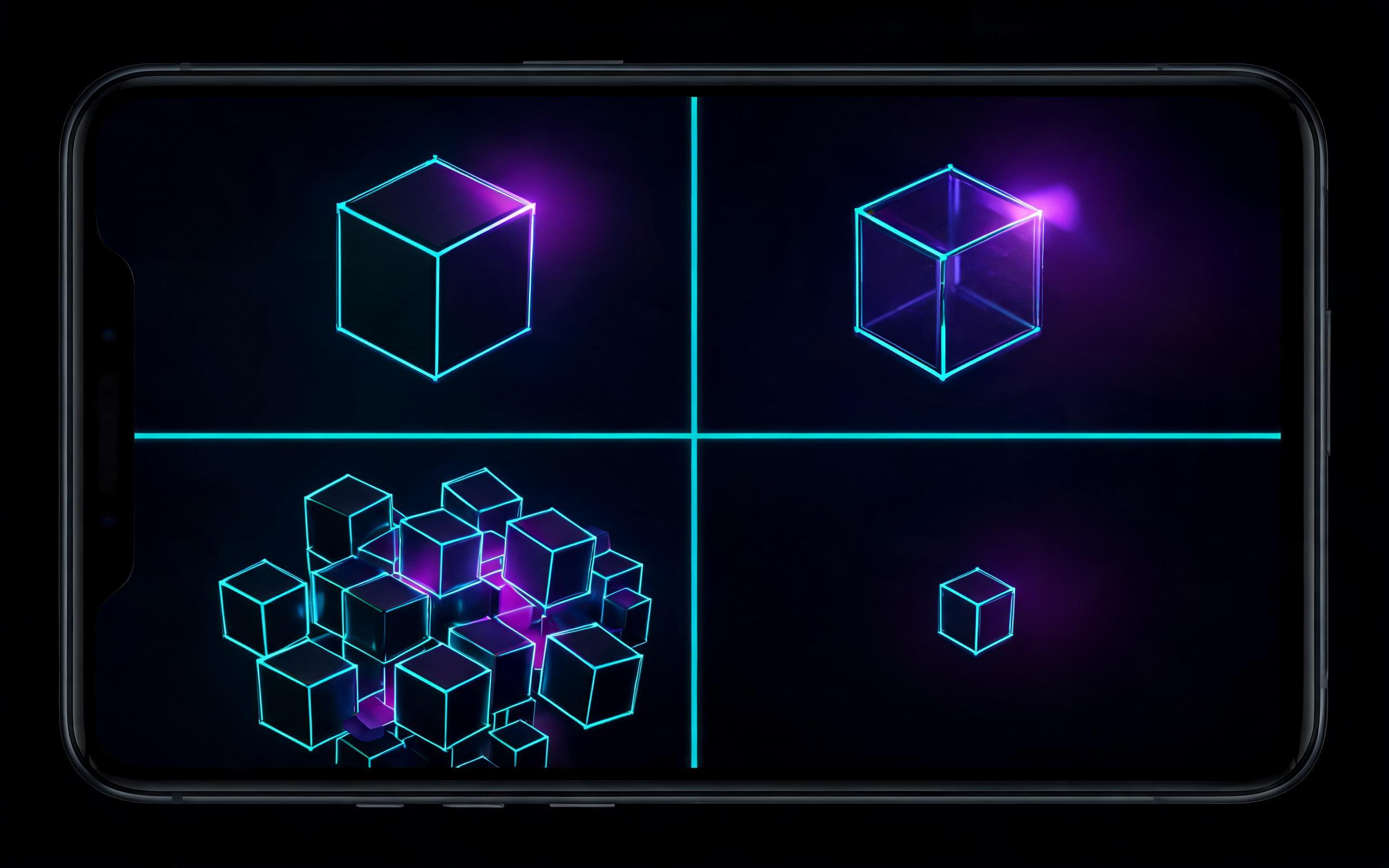
Test renderer edge cases
Custom Depth behavior varies with translucent materials, Nanite configuration, temporal anti-aliasing, screen percentage, and platform renderer. Validate representative assets rather than one opaque cube.
Decision and validation matrix
| Checkpoint | Owner or boundary | Acceptance evidence | Stop condition |
|---|---|---|---|
| Selection state | Controller/component/UI | One authoritative selected target | |
| Mask | Custom Depth or Stencil | Correct primitive coverage | |
| Outline | Post-process edge test | Stable at motion and distance | |
| Platform | Renderer feature support | Packaged target evidence |
Evidence map: what each checkpoint proves
Selection state: evidence before confidence
Treat this checkpoint as a boundary, not a suggestion. For how to highlight select unreal engine, the working boundary is “Controller/component/UI.” The reviewer should be able to inspect “One authoritative selected target” without relying on a polished screenshot or a verbal claim. Capture the exact source, version, settings, test target, and result that produced the evidence. If the result changes after a restart, package, account change, platform switch, or source update, treat the earlier result as stale. Stop and investigate when “Leaving Custom Depth enabled after deselection.” becomes the practical outcome, because continuing would mix a known uncertainty into later decisions.
Mask: evidence before confidence
Use this checkpoint to keep diagnosis falsifiable. For how to highlight select unreal engine, the working boundary is “Custom Depth or Stencil.” The reviewer should be able to inspect “Correct primitive coverage” without relying on a polished screenshot or a verbal claim. Capture the exact source, version, settings, test target, and result that produced the evidence. If the result changes after a restart, package, account change, platform switch, or source update, treat the earlier result as stale. Stop and investigate when “Using every stencil value without governance.” becomes the practical outcome, because continuing would mix a known uncertainty into later decisions.
Outline: evidence before confidence
Record this checkpoint before changing the next variable. For how to highlight select unreal engine, the working boundary is “Post-process edge test.” The reviewer should be able to inspect “Stable at motion and distance” without relying on a polished screenshot or a verbal claim. Capture the exact source, version, settings, test target, and result that produced the evidence. If the result changes after a restart, package, account change, platform switch, or source update, treat the earlier result as stale. Stop and investigate when “Making objectives readable only by color.” becomes the practical outcome, because continuing would mix a known uncertainty into later decisions.
Platform: evidence before confidence
Make this checkpoint visible in the handoff record. For how to highlight select unreal engine, the working boundary is “Renderer feature support.” The reviewer should be able to inspect “Packaged target evidence” without relying on a polished screenshot or a verbal claim. Capture the exact source, version, settings, test target, and result that produced the evidence. If the result changes after a restart, package, account change, platform switch, or source update, treat the earlier result as stale. Stop and investigate when “Testing only opaque non-Nanite meshes.” becomes the practical outcome, because continuing would mix a known uncertainty into later decisions.
Scenario walkthroughs and edge cases
Scenario 1: Define hover, select, deselect, and destroy behavior
A useful first scenario begins with define hover, select, deselect, and destroy behavior. Then enable the project Custom Depth/Stencil mode. Keep the input set small enough that another person can reproduce the same result. Save the before state, the single change, and the observed after state instead of relying on memory. The failure pattern to guard against is “Leaving Custom Depth enabled after deselection.” If that risk appears, revert to the last accepted checkpoint, isolate the responsible system, and only then resume the interaction highlight tutorial workflow.
Scenario 2: Enable the project Custom Depth/Stencil mode
For a controlled reproduction, start by enable the project Custom Depth/Stencil mode. Then create a bounded post-process material. Keep the input set small enough that another person can reproduce the same result. Save the before state, the single change, and the observed after state instead of relying on memory. The failure pattern to guard against is “Using every stencil value without governance.” If that risk appears, revert to the last accepted checkpoint, isolate the responsible system, and only then resume the interaction highlight tutorial workflow.
Scenario 3: Create a bounded post-process material
When the result is ambiguous, return to create a bounded post-process material. Then assign stencil categories deliberately. Keep the input set small enough that another person can reproduce the same result. Save the before state, the single change, and the observed after state instead of relying on memory. The failure pattern to guard against is “Making objectives readable only by color.” If that risk appears, revert to the last accepted checkpoint, isolate the responsible system, and only then resume the interaction highlight tutorial workflow.
Practical workflow
- Define hover, select, deselect, and destroy behavior.
- Enable the project Custom Depth/Stencil mode.
- Create a bounded post-process material.
- Assign stencil categories deliberately.
- Test occlusion and translucent meshes.
- Profile a packaged target build.
Handoff record for a second reviewer
A reliable interaction highlight tutorial handoff separates observed facts from assumptions. Use the following record to make the work repeatable:
- Define hover, select, deselect, and destroy behavior. Attach evidence for selection state: one authoritative selected target. Name the artifact or capture so its engine version, source revision, platform, and test date are recoverable. A reviewer should know what passed, what was not tested, and which change would invalidate the result.
- Enable the project Custom Depth/Stencil mode. Attach evidence for mask: correct primitive coverage. Name the artifact or capture so its engine version, source revision, platform, and test date are recoverable. A reviewer should know what passed, what was not tested, and which change would invalidate the result.
- Create a bounded post-process material. Attach evidence for outline: stable at motion and distance. Name the artifact or capture so its engine version, source revision, platform, and test date are recoverable. A reviewer should know what passed, what was not tested, and which change would invalidate the result.
- Assign stencil categories deliberately. Attach evidence for platform: packaged target evidence. Name the artifact or capture so its engine version, source revision, platform, and test date are recoverable. A reviewer should know what passed, what was not tested, and which change would invalidate the result.
- Test occlusion and translucent meshes. Attach evidence for selection state: one authoritative selected target. Name the artifact or capture so its engine version, source revision, platform, and test date are recoverable. A reviewer should know what passed, what was not tested, and which change would invalidate the result.
- Profile a packaged target build. Attach evidence for mask: correct primitive coverage. Name the artifact or capture so its engine version, source revision, platform, and test date are recoverable. A reviewer should know what passed, what was not tested, and which change would invalidate the result.
Questions the reviewer should be able to answer
- Can a second reviewer distinguish the selection state decision from the wider how to highlight select unreal engine claim? Ask them to locate the recorded boundary “Controller/component/UI,” reproduce “One authoritative selected target,” and explain whether “Leaving Custom Depth enabled after deselection.” would stop promotion. If any answer depends on private context or an uncaptured screen, the evidence package is incomplete.
- Can a second reviewer distinguish the mask decision from the wider how to highlight select unreal engine claim? Ask them to locate the recorded boundary “Custom Depth or Stencil,” reproduce “Correct primitive coverage,” and explain whether “Using every stencil value without governance.” would stop promotion. If any answer depends on private context or an uncaptured screen, the evidence package is incomplete.
- Can a second reviewer distinguish the outline decision from the wider how to highlight select unreal engine claim? Ask them to locate the recorded boundary “Post-process edge test,” reproduce “Stable at motion and distance,” and explain whether “Making objectives readable only by color.” would stop promotion. If any answer depends on private context or an uncaptured screen, the evidence package is incomplete.
- Can a second reviewer distinguish the platform decision from the wider how to highlight select unreal engine claim? Ask them to locate the recorded boundary “Renderer feature support,” reproduce “Packaged target evidence,” and explain whether “Testing only opaque non-Nanite meshes.” would stop promotion. If any answer depends on private context or an uncaptured screen, the evidence package is incomplete.
Common mistakes to avoid
- Leaving Custom Depth enabled after deselection.
- Using every stencil value without governance.
- Making objectives readable only by color.
- Testing only opaque non-Nanite meshes.
Related Unreal coverage
Official and primary sources
Source availability and product behavior can change. Recheck dates, versions, territories, licenses, and current support before acting.
Frequently asked questions
What is the direct answer for how to highlight select unreal engine?
For a runtime selection outline, enable Custom Depth or Custom Stencil on the selected primitive, read SceneTexture data in a post-process material, detect depth or stencil edges, and blend an outline color. Keep selection authority in gameplay or UI state rather than the material. Define whether the highlight is visible through walls, how multiple teams or item types use stencil values, and how Nanite, translucency, split screen, and mobile rendering affect the result.
What should be verified first?
Define hover, select, deselect, and destroy behavior.
What is the main risk?
Leaving Custom Depth enabled after deselection.
What evidence should be saved?
Save the source version, settings, target platform, accepted output, and the result of the checkpoint “One authoritative selected target.” A screenshot without those boundaries is not enough to reproduce the decision.
When should the workflow stop?
Stop when the next action would depend on an unverified right, incompatible version, missing source, unsupported target, or a result that cannot be reproduced. Resolve that boundary before expanding the interaction highlight tutorial workflow.