


Build the AI 3D scene brief
Describe the space, structure, light, materials, camera view, and intended use in any language. Add one PNG, JPG, or WebP reference when visual direction matters.
GPT-6-era quality — from a prompt or an image to an editable, ready-to-use 3D model
GPT-6 style Agents
A 3D model maker becomes more useful when 3D model AI can understand a prompt, image, or sketch, then turn that direction into a scene you can inspect, continue, and refine.
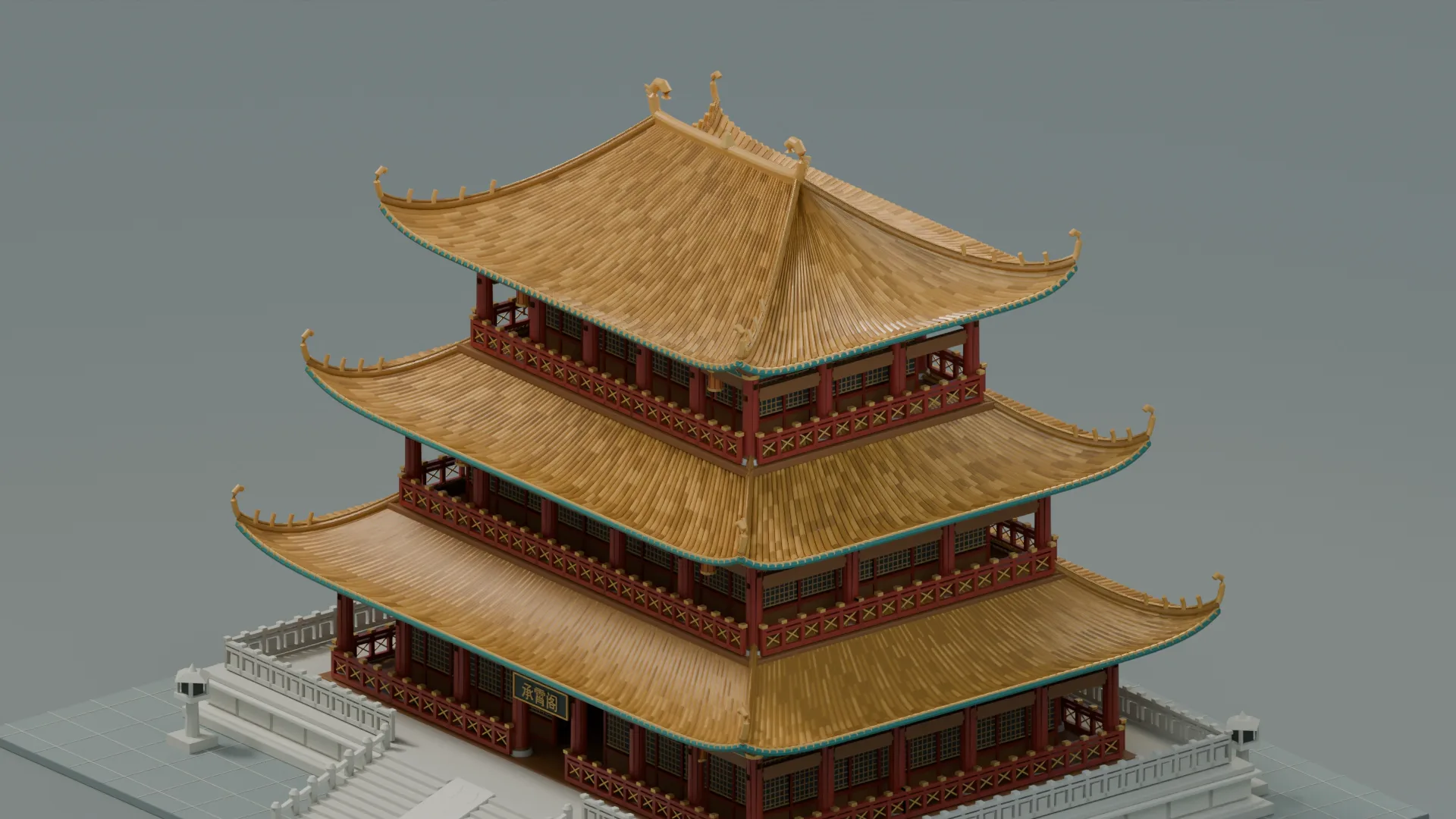
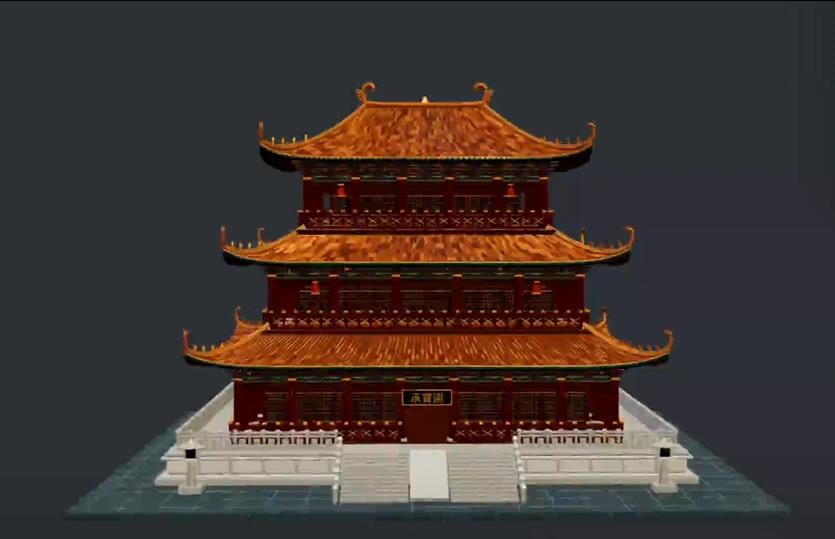
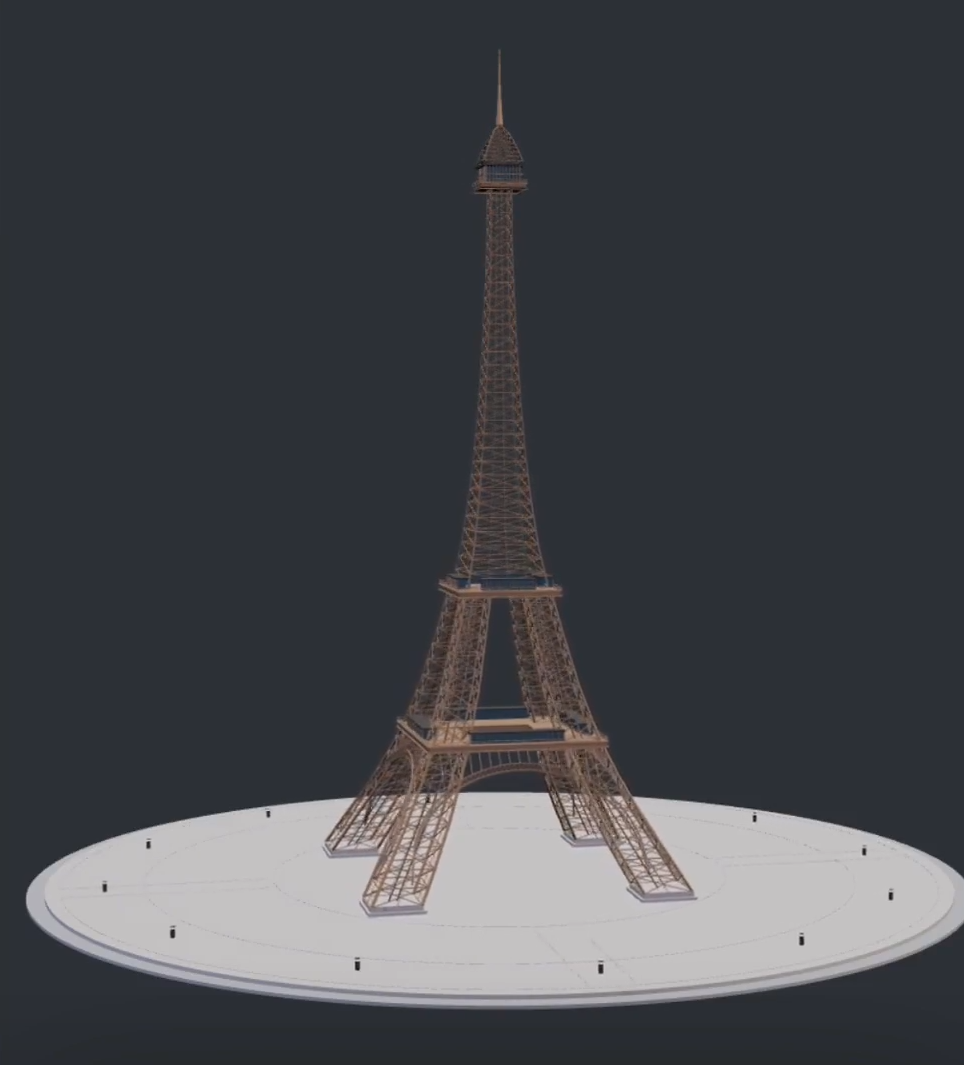
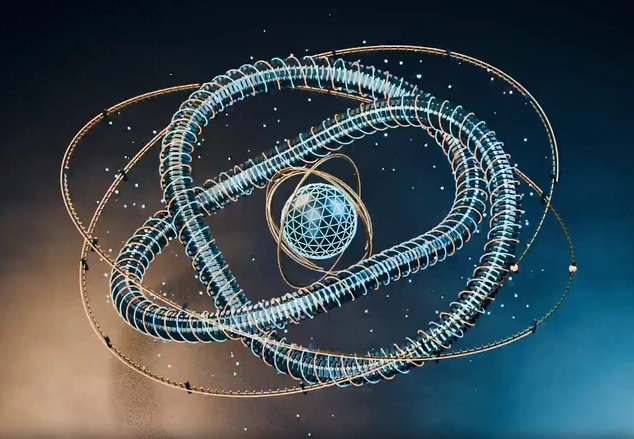
Hover to preview the build process. Try this prompt opens it in Workspace; the download button saves the model file.
The agentic workflow
The next wave of 3D model generator workflows is agentic: describe a goal, attach a reference, inspect the result, and continue into an editing pass. This keeps creative direction and practical asset review connected.
Describe the space, structure, light, materials, camera view, and intended use in any language. Add one PNG, JPG, or WebP reference when visual direction matters.
Include cleanup goals such as scale, materials, polygon weight, file size, orientation, pivot, and target format for an AI-generated 3D model.
Review the handoff in Workspace, then use the right online 3D model editor or cleanup workflow before Unity, Unreal, Web, or prototype import.
3D model AI workflows
A useful Agent brief connects the creative scene goal with the asset checks that follow generation. It helps teams decide what to build, what to inspect, and which 3D editing task comes next.
Prompt ideas
Each example fills the prompt field with a scene direction and an editor-ready review goal.
What transfers
This page is an AI 3D modeling agent for editable scene direction and review priorities—not a one-shot AI 3D model generator for create/preview/export of a single asset. The Agent hands off scene direction and the checks you specify; asset cleanup, conversion, and final engine validation remain deliberate next steps.
Before production
AI-generated and Meshy models can still need material, topology, polygon-weight, and file-size checks after generation.
Fixing a sideways, upside-down, or off-axis 3D model depends on the target engine, pivot, origin, scale, and up-axis convention.
GLB, GLTF, FBX, and OBJ exports still need performance, platform, rights, and import validation before production use.
FAQ
No. It starts a scene brief in Workspace. Review scale, structure, materials, performance, and rights before production.
The AI 3D Model Generator creates and exports a single asset. This Agent builds an editable scene brief, then continues in Workspace for chat-style iteration.
Yes. After handoff, refine layout, materials, camera, and review goals in Workspace instead of treating the first pass as final.
Both work as Agent inputs. You get a scene direction and handoff here—use the AI 3D Model Generator for create, preview, and export of one model.
Yes. The original image and scene brief hand off together; the attachment keeps uploading after sign-in.
Any language that helps you describe the scene clearly.
Space, structure, intended use, style, light, materials, and camera view. Add a reference image when form or mood matters.
Explore more
Next step
Start with a clear direction and one reference image.
Build in WorkspaceAsk AI about SEELE AI.


3D landmark models
Related reading