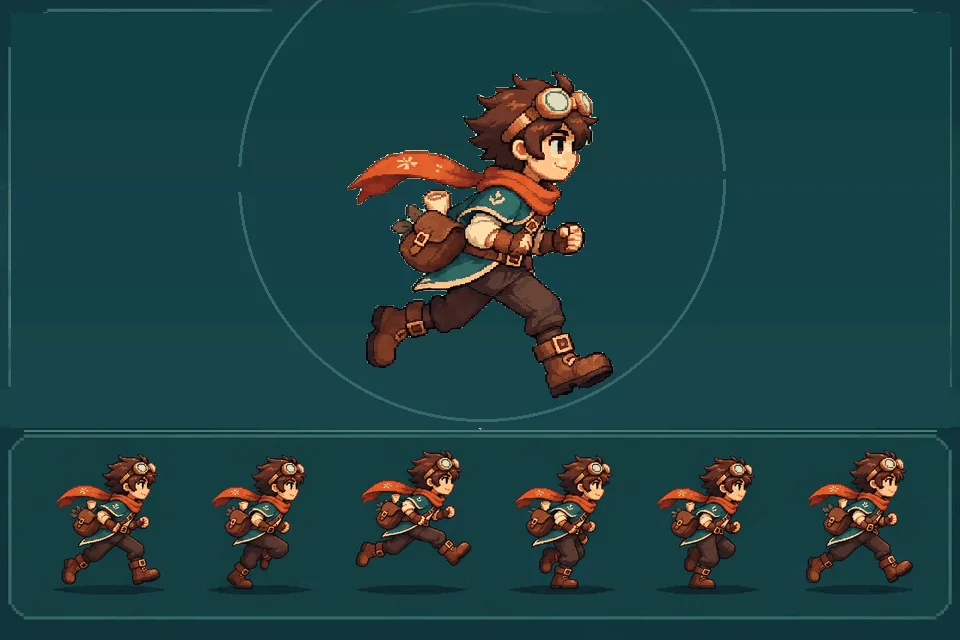

Character sprites
Start with a player, enemy, or NPC. Specify the camera angle and how large the character will appear in the game.

Build a sprite sheet from one character pose. Create pixel art characters and running sprite sheets from simple prompts. Refine character details and animation poses in SeeleAgent Workspace.
Partners and teams

















How it works
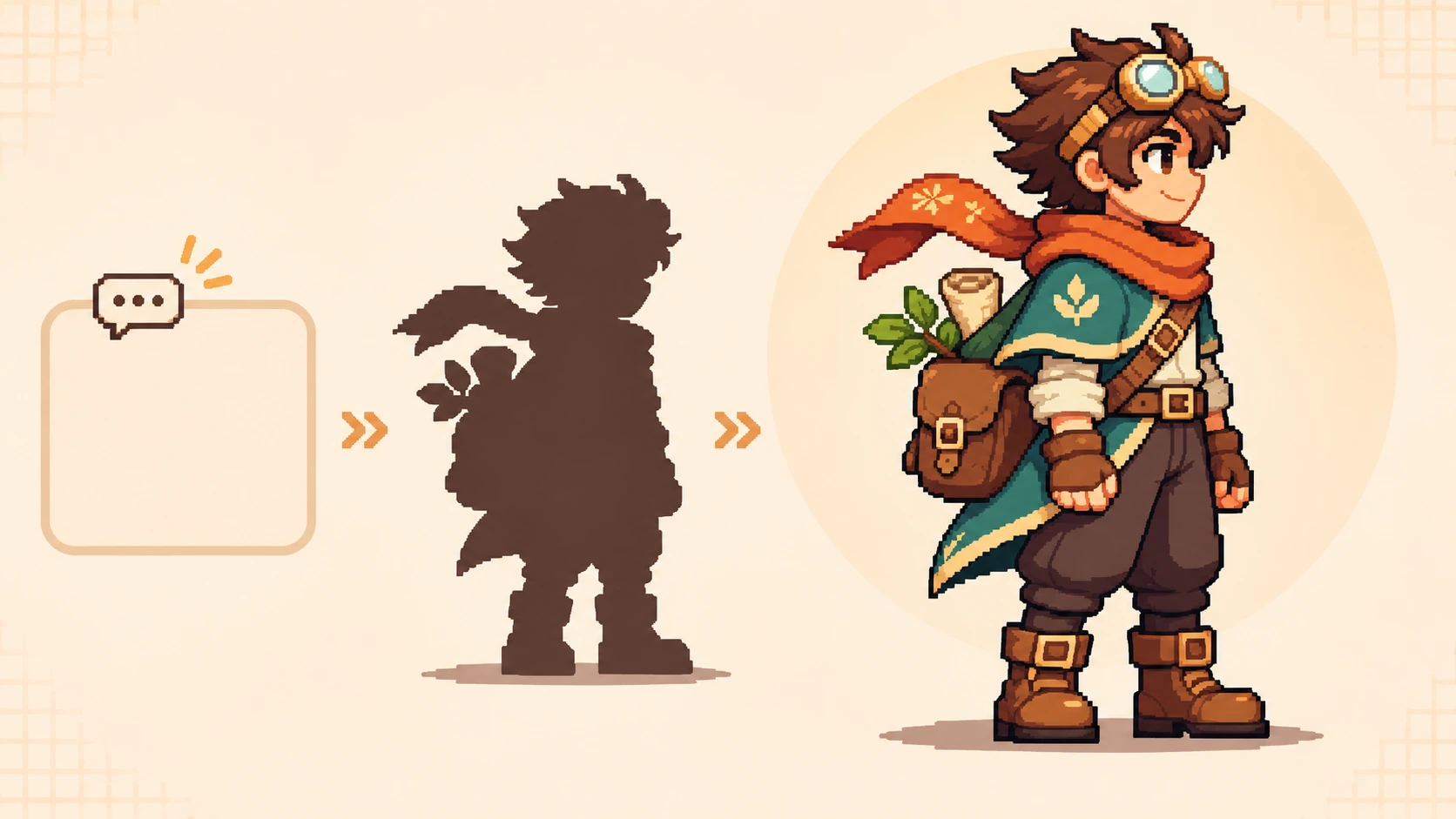
Need a hero for your 2D platformer? Describe a side-view pixel-art character with a recognizable outfit, color palette, and silhouette. Start with a clear design that can stay consistent across animation frames.
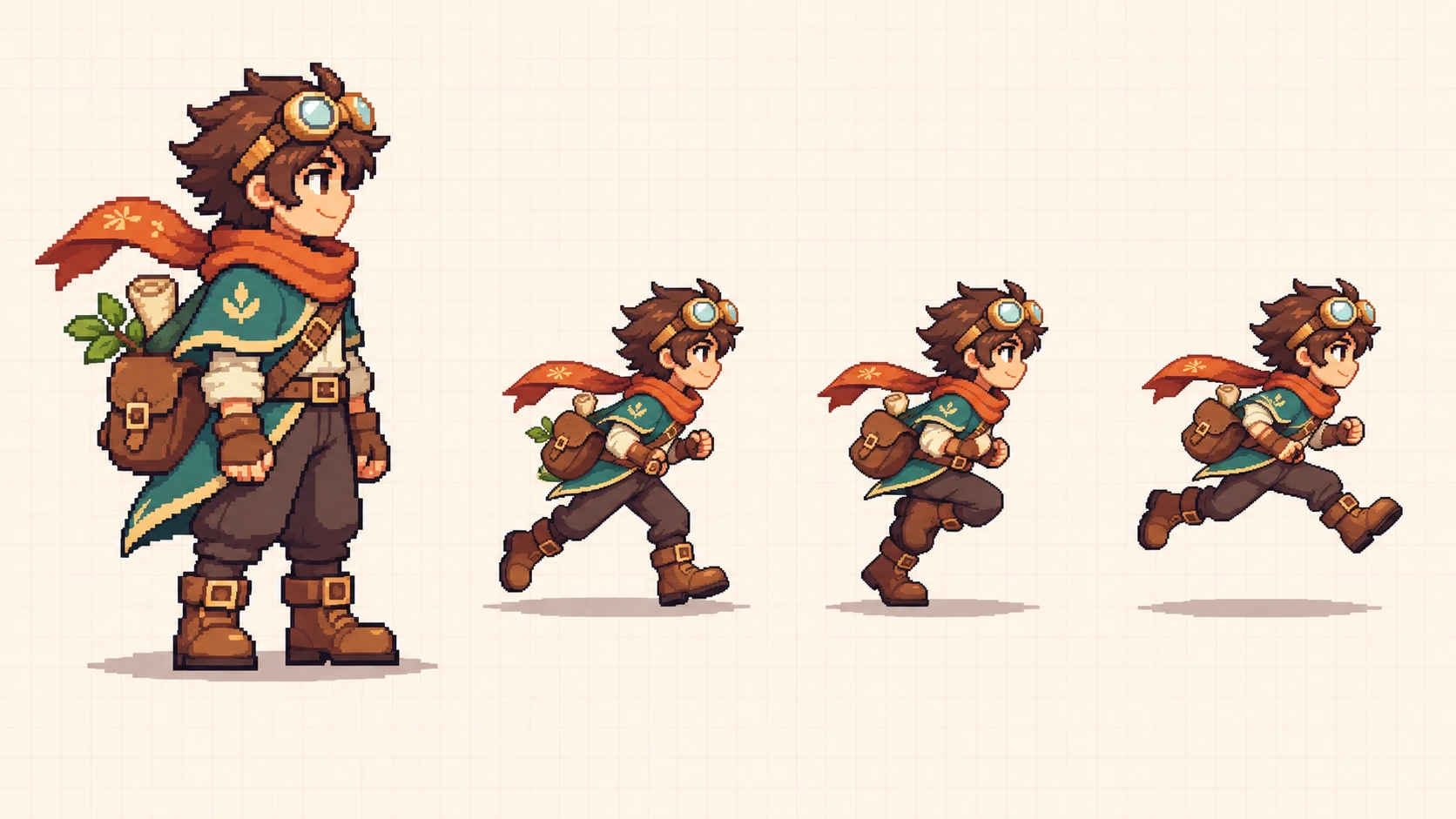
Make your character move. Describe a running action with alternating steps, natural arm movement, and a consistent side view. Keep the same hairstyle, clothing, accessories, and proportions in every pose.
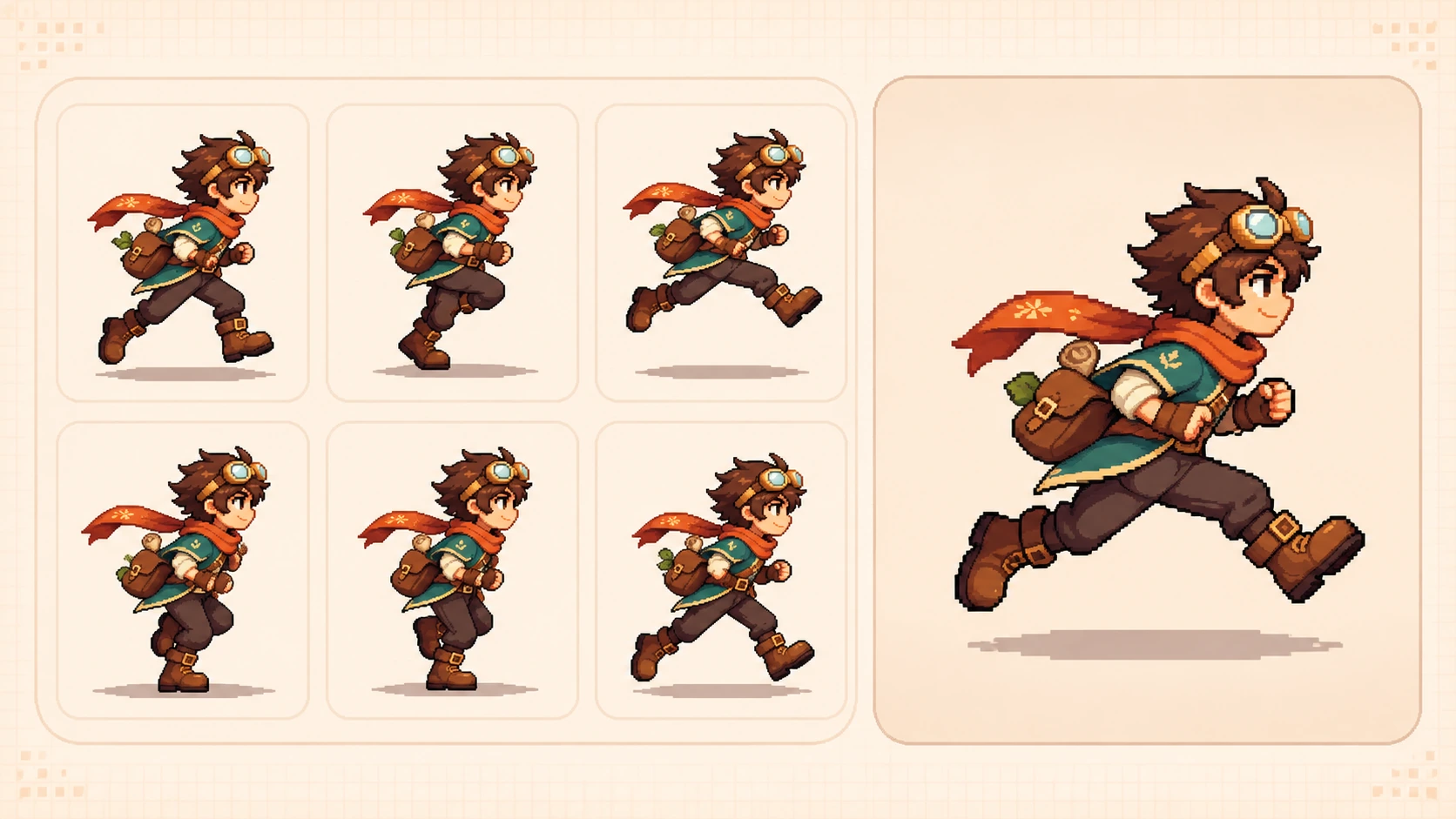
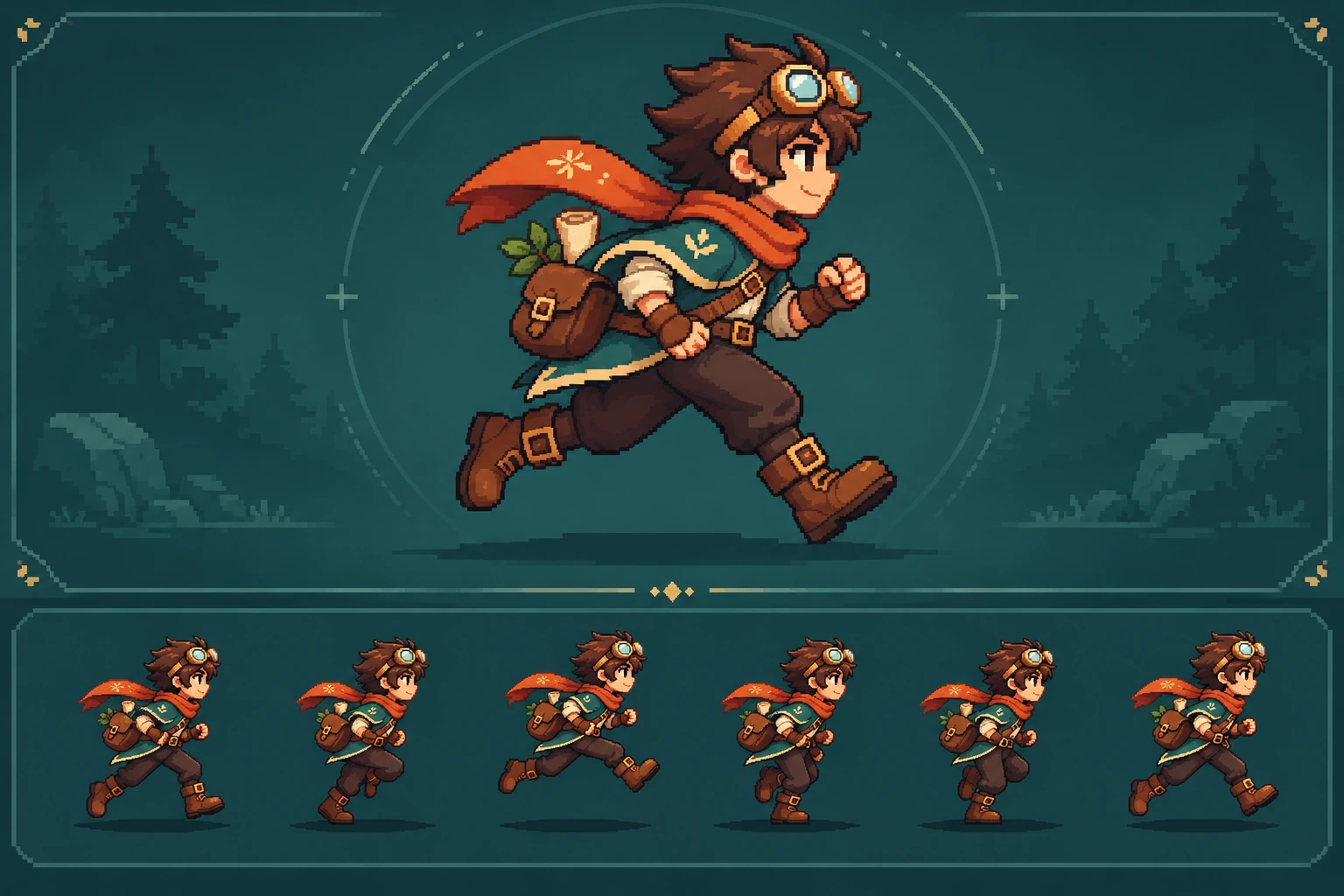
Review your character's running poses in a sprite sheet and preview how they play together. Check frame alignment, character consistency, and smooth transitions before using the animation in your game.
Pick a starting point
Building a 2D platformer? Create a six-frame running animation for your main character and see how the individual poses form a continuous run cycle.
Create a six-frame running animation for a charming 16-bit pixel-art adventure hero in a side-scrolling platformer. The character has tousled brown hair, bronze goggles, a flowing orange scarf, a teal adventurer's jacket, a small brown leather satchel, dark trousers, and brown boots. Show the same character facing right in all six frames. Include alternating running strides, natural arm swings, a brief airborne phase, and consistent ground contact. Keep the character's face, goggles, scarf, outfit, proportions, pixel scale, and color palette consistent throughout the sequence. Arrange the six poses in playback order with equal frame dimensions and a transparent background. Make the running animation suitable for a smooth repeating loop.
Why SEELE
Start with a player, enemy, or NPC. Specify the camera angle and how large the character will appear in the game.

Develop idle, walk, or run frames from the same character reference. Check the loop before adding more actions.

Use the character palette and camera angle as a brief for pickups, obstacles, and scenery.
Step by step
Learn how to turn a character idea into a sprite sheet, refine your animation frames, and prepare the result for your 2D game.
Open SeeleAgent Workspace and describe your character's appearance, pixel art style, viewing angle, and movement. For example, create a side-view forest courier with a teal jacket and orange scarf, then request a four-frame running animation.
Name each state, its frame count, and whether it loops. For the courier’s run, ask for six 64 × 64 px cells in one row. Specify playback order, a shared baseline, and a transparent background.
Play the frames at game size. Watch the feet at contact and the transition from the last pose back to the first. If one frame jumps, ask to revise that frame and keep the approved poses.
If your output is a PNG sheet, check the transparency and cell size before slicing it in Unity or Godot. Set the pivots and frame timing, then test the loop in your scene.
Workflow illustration
See six poses fill a sprite sheet, then watch the pixel-art adventurer run.
Compare
Start with the output you need: a set of game frames, an image to edit, or a short video.
| Feature | SEELE AI | PixelLab | OpenArt | Midjourney |
|---|---|---|---|---|
| Getting started | Start with a character prompt and refine your sprite in Workspace using available credits. | Free trial available. | Trial credits on signup. | Subscription plans. |
| Character design | Brief a character and revise the reference pose in Workspace. | Generate pixel art sprites and rotate a character reference. | Create character images with a choice of image models. | Develop a character concept with image prompts. |
| Motion output | Describe the action and frame layout you want, then review and refine the resulting poses in Workspace. | Generate pixel art animation frames from a reference sprite. | Animate a still image with image to video tools. | Animate an image and download the result as an MP4. |
| Transparent images | Check the background on the generated asset before import. | Remove the background and export a transparent PNG. | Use the background remover to save a transparent PNG. | Erase areas in Editor and save the edit as a transparent PNG. |
FAQ
A sprite sheet places several images on one canvas. A game can display individual cells in sequence to animate a character, or use the cells for separate items and effects.
Specify the camera angle, character silhouette, palette, frame size, and action. For an animation, also describe the poses and where the character touches the ground.
Keep a reference pose and ask for the same proportions, colors, and frame size. Inspect the frames side by side to catch changes in the outline or ground line.
Yes. Ask for pixel art and give a target size and palette. Review the result at the size it will occupy in your game, where outlines and contrast matter most.
Yes. For a button confirmation flash, ask for four transparent 32 px frames that brighten, peak, and fade once. Keep the flash centered and check the sequence against the actual button background.
Both engines can slice a sprite sheet into frames. Before importing, check the file format, transparency, grid spacing, and frame order against your project settings.
Send a prompt from this page to seeleAgent Workspace. Review the first pose there, then ask for the frames or revise individual poses.
Start with the courier prompt or describe a character of your own.
Write a sprite prompt